Features
The JNose Test home screen presents a description for the analysis mode and a menu with the options:
Cloning software projects
Initially, we paste the repository link on the Git repository field. E.g: https://github.com/tassiovirginio/jnose.
The tool clones the repository on your machine, in the directory ./jnose. The tool displays all the projects from the ./jnose directory at the web page, and provides options to update, delete and visualize information about the projects.

For now, the jNose Test supports the analysis of projects with test cases written with JUnit4. Therefore, JNose Test does not present projects without test cases in other screens, and its accuracy may not as good as it is for JUnit4.
Configuration

By TestClass
The analysis mode By TestClass counts the number of each test smell in a class level. Optionally, you can also enable the coverage metrics calculation.
Initially, you need to specify the projects that you want to analyze. By default, the analysis By TestClass is performed in the latest version of the selected projects and does not require information about other project versions. Therefore, if you want to analyze other versions, you can go to the directory of the project under analysis (e.g., ../home/.jnose_projects/commons-io) and use the command git checkout COMMIT_SHA to change the projects version.
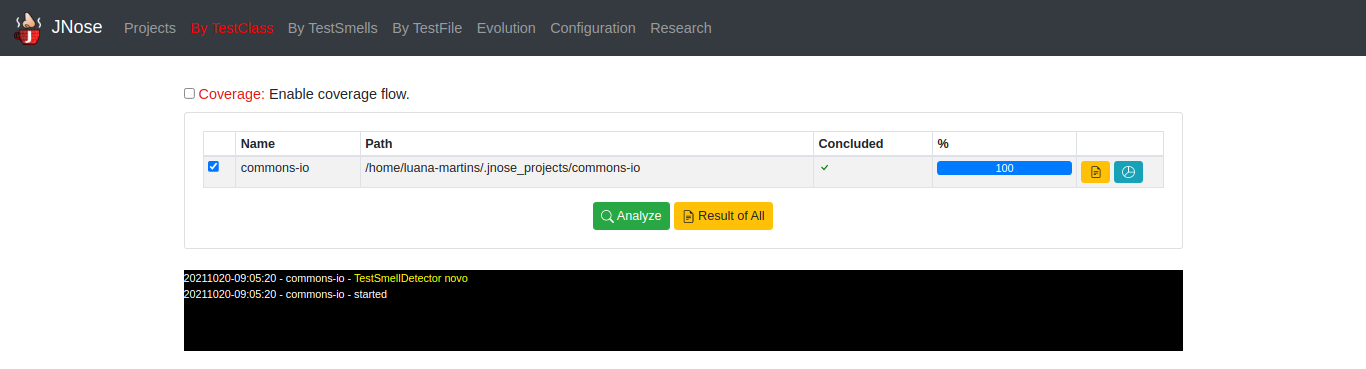
Once the execution is over, you can visualize the results and generates a .csv file with the results of the data analysis by test class. Each .csv row corresponds to a given test class, and each column represents the type of parameter collected: project name, test class and production class location, twenty-one types of test smells, the number of test class lines, the number of test methods, and five columns with coverage data.

By TestSmells
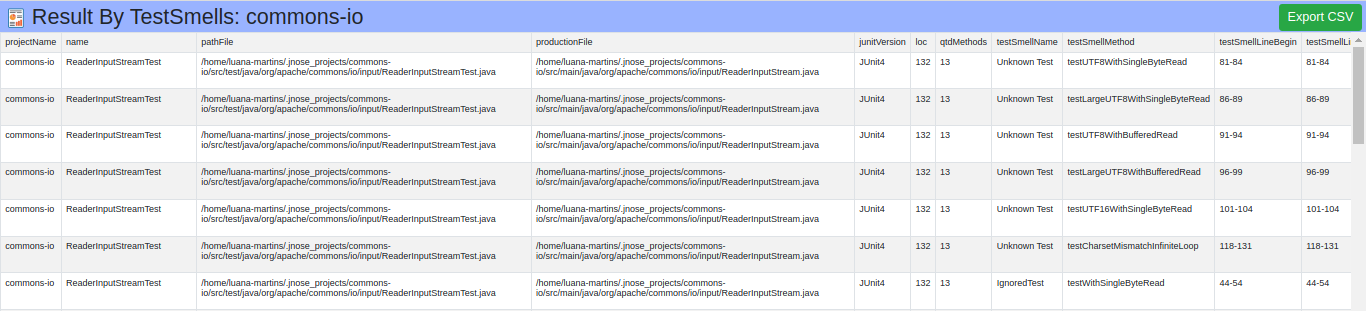
The analysis mode By TestSmells identifies the exact location of each test smell.
Initially, you need to specify the projects that you want to analyze. By default, the analysis By TestSmells is performed in the latest version of the selected projects and does not require information about other project versions. Therefore, if you want to analyze other versions, you can go to the directory of the project under analysis (e.g., ../home/.jnose_projects/commons-io) and use the command git checkout COMMIT_SHA to change the projects version.

Once the execution is over, you can visualize the results and generates a .csv file with the results of the data analysis by test smells. Unlike the previous analysis, By TestClass, the JNose Test provides the exact method and line where the test smell is located. Each row of the .csv represents a test smell, and it has six columns to show the type of parameter collected, the project name, the test class and the production class location, the test smell name, the method of the test smell location in number of line, and the method name.
By TestFile
Evolution
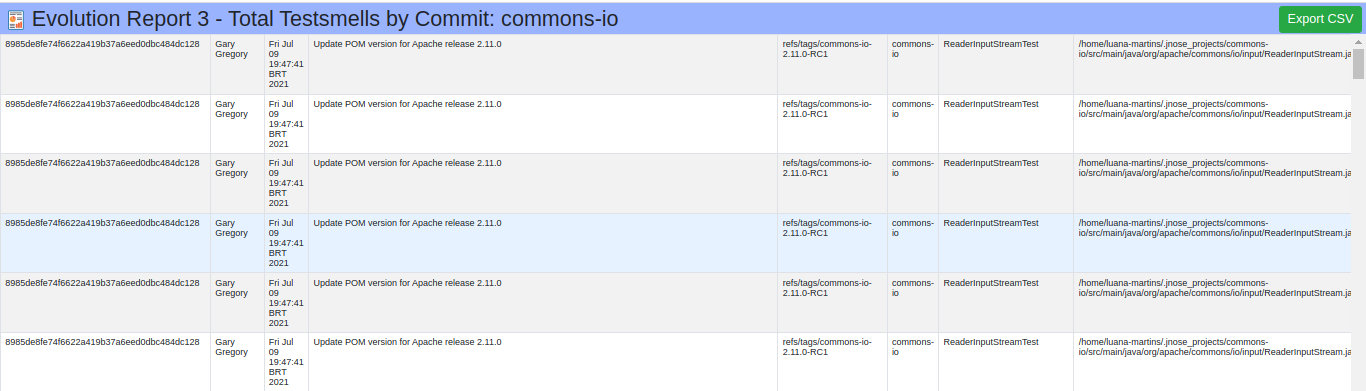
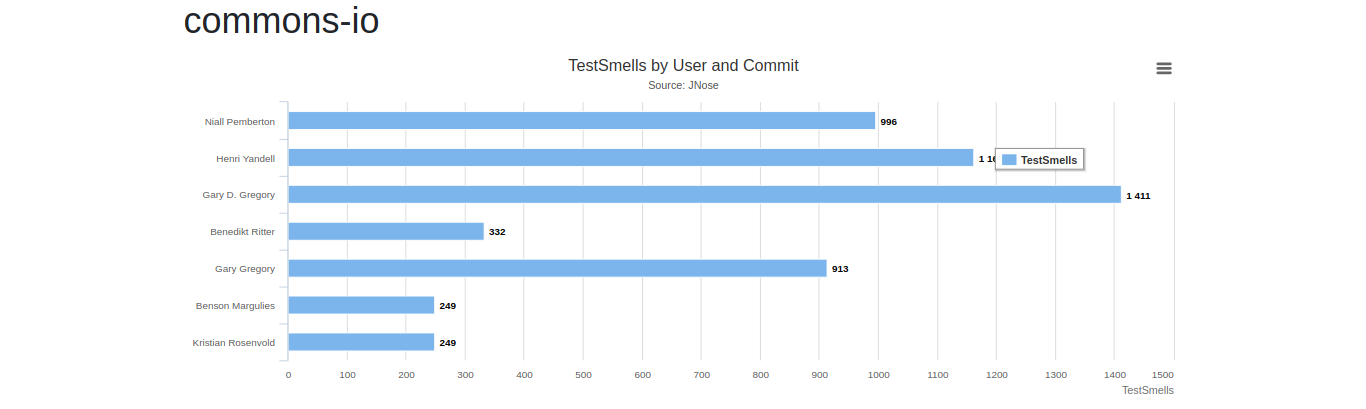
The analysis mode Evolution identifies the exact location of each test smell for each project version, in addition to data about the author who committed the test smell.
Initially, you need to specify the projects that you want to analyze and the search type you want to apply: by commits or by tags. The execution is performed from the first commit or tag to the last one. For now, there is no way to select a specific interval to execute the tool.
Once the execution is over, you can visualize the results and generates a .csv file with the results of the data analysis by test smells. The .csv rows represent the test smell by commit or tag; and the columns have the following collected parameters: SHA, commiter, date, commit message, tag name, project name, test class and production class location, test smells, commit identification. To find out who committed the test smell, the tool automatically calculates the authorship of a test smell by guilt, i.e., for the tester who last modified the method (and did not fixed it), assuming that he was aware of the problem and attribute to him the authorship.
You can also generete charts to analyze the test smells evolution.
Research
Not implemented yet!